Freelancers are treated slightly differently to Staff Resources in iCFM. In order to track costs for your Freelancers using their invoices, you can use Purchase Orders to enter the exact costs instead of using a Day Rate per each Resource.
To Set up a Freelancer:
- Create a Company record for your Freelancer
- If a Resource record does not already exist, one will be created automatically when the PO is Authorised, with a Category of Outsource, named after the Company, and marked as Generic.
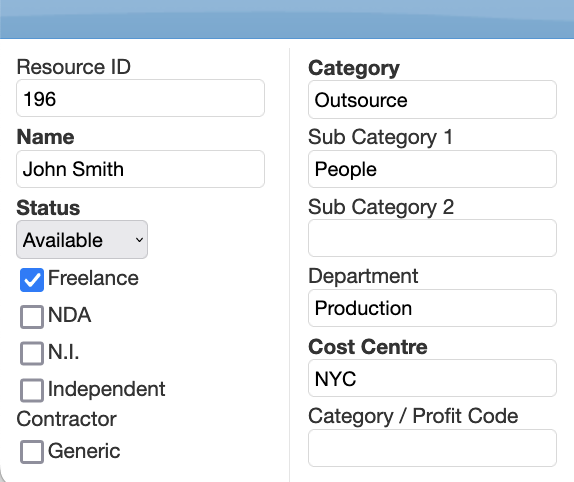
- If a Resource record already exists, the name must match the Company name exactly, otherwise a duplicate will be created. Ensure the Category is set to Outsource and the Resource is ticked as Freelance so costs are correctly categorised in financial reporting.
To Schedule a Freelancer:
- Create a Purchase Order with the Purchase Order Type set to Freelance
- When the PO is Authorised, the Job will be automatically scheduled using the inputted details
- Please Note: If you create a Job first and then link a PO to it manually, iCFM will ignore the PO cost and use the existing Job costs instead. This prevents doubling up revenue. Always create the PO first and let the Job be created automatically.
- No Charge: If you do not want the PO costs to be invoiced, select No Charge on the PO — this will prevent a Job from being created.
- When the PO is Completed, the Job will also be automatically Completed and Costed — you do not need to do this manually.
Was this article helpful?
That’s Great!
Thank you for your feedback
Sorry! We couldn't be helpful
Thank you for your feedback
Feedback sent
We appreciate your effort and will try to fix the article